
Set up logging

Log an AI project to Humanloop.

This quickstart takes a chat agent and adds Humanloop logging to it so you can observe and reason about its behavior.

Prerequisites

Create a Humanloop Account

If you haven’t already, create an account or log in to Humanloop

Add an OpenAI API Key

If you’re the first person in your organization, you’ll need to add an API key to a model provider.

  1. Go to OpenAI and grab an API key.
  2. In Humanloop Organization Settings set up OpenAI as a model provider.

Using the Prompt Editor will use your OpenAI credits in the same way that the OpenAI playground does. Keep your API keys for Humanloop and the model providers private.

pip install humanloop openai

Create the chat agent

To demonstrate how to add logging, we will start with a chat agent that answers math and science questions.

Create a script and add the following:

import json
from humanloop import Humanloop
from openai import OpenAI
openai = OpenAI(api_key="<YOUR_OPENAI_KEY>")
humanloop = Humanloop(api_key="<YOUR_HUMANLOOP_KEY>")
def calculator(operation: str, num1: int, num2: int) -> str:
"""Do arithmetic operations on two numbers."""
if operation == "add":
return num1 + num2
elif operation == "subtract":
return num1 - num2
elif operation == "multiply":
return num1 * num2
elif operation == "divide":
return num1 / num2
else:
return "Invalid operation"
def call_model(messages: list[str]) -> str:
output = openai.chat.completions.create(
messages=messages,
model="gpt-4o-mini",
tools=[{
"type": "function",
"function": {
'name': 'calculator',
'description': 'Do arithmetic operations on two numbers.',
'parameters': {
'type': 'object',
'required': ['operation', 'num1', 'num2'],
'properties': {
'operation': {'type': 'string'},
'num1': {'type': 'integer'},
'num2': {'type': 'integer'}
},
'additionalProperties': False
},
},
}],
temperature=0.7,
)
# Check if model asked for a tool call
if output.choices[0].message.tool_calls:
for tool_call in output.choices[0].message.tool_calls:
arguments = json.loads(tool_call.function.arguments)
if tool_call.function.name == "calculator":
result = calculator(**arguments)
return f"[TOOL CALL] {result}"
# Otherwise, return the LLM response
return output.choices[0].message.content
def conversation():
messages = [
{
"role": "system",
"content": "You are a a groovy 80s surfer dude "
"helping with math and science."
},
]
while True:
user_input = input("You: ")
if user_input == "exit":
break
messages.append({"role": "user", "content": user_input})
response = call_model(messages=messages)
messages.append({"role": "assistant", "content": response})
print(f"Agent: {response}")
if __name__ == "__main__":
conversation()

Log to Humanloop

If you use a programming language not supported by the SDK, or want more control, see our guide on logging through the API for an alternative to decorators.

Use the SDK decorators to enable logging. At runtime, every call to a decorated function will create a Log on Humanloop.

@humanloop.tool(path="Logging Quickstart/Calculator")
def calculator(operation: str, num1: int, num2: int) -> str:
...
@humanloop.prompt(path="Logging Quickstart/QA Prompt")
def call_model(messages: list[str]) -> str:
...
@humanloop.flow(path="Logging Quickstart/QA Agent")
def conversation():
...
if __name__ == "__main__":
conversation()

Run the code

Have a conversation with the agent. When you’re done, type exit to close the program.

> python main.py
You: Hi dude!
Agent: Tubular! I am here to help with math and science, what is groovin?
You: How does flying work?
Agent: ...
You: What is 5678 * 456?
Agent: [TOOL CALL] 2587968
You: exit

Check your workspace

Navigate to your workspace to see the logged conversation.

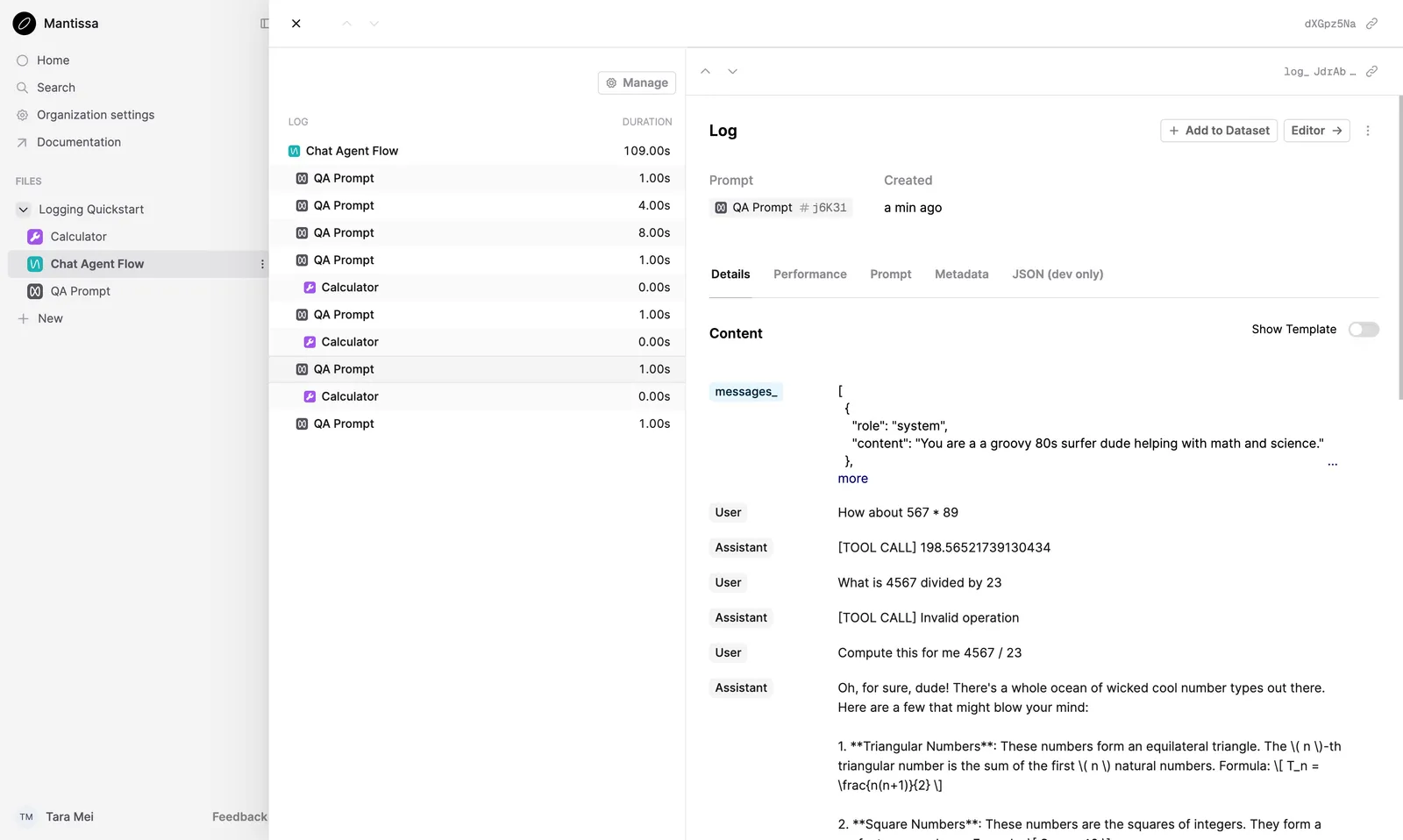
Inside the Logging Quickstart directory on the left, click the QA Agent Flow. Select the Logs tab from the top of the page and click the Log inside the table.

You will see the conversation’s trace, containing Logs corresponding to the Tool and the Prompt.
Change the agent and rerun

Modify the call_model function to use a different model and temperature.

@humanloop.prompt(path="Logging Quickstart/QA Prompt")
def call_model(messages: list[str]) -> str:
output = openai.chat.completions.create(
messages=messages,
model="gpt-4o-mini",
tools=[
# The @tool utility adds a .json_schema attribute
# to avoid redefining the schema
calculator.json_schema
],
temperature=0.2,
)
# Check if model asked for a tool call
if output.choices[0].message.tool_calls:
for tool_call in output.choices[0].message.tool_calls:
arguments = json.loads(tool_call.function.arguments)
if tool_call.function.name == "calculator":
result = calculator(**arguments)
return f"[TOOL CALL] {result}"
# Otherwise, return the LLM response
return output.choices[0].message.content

Run the agent again, then head back to your workspace.

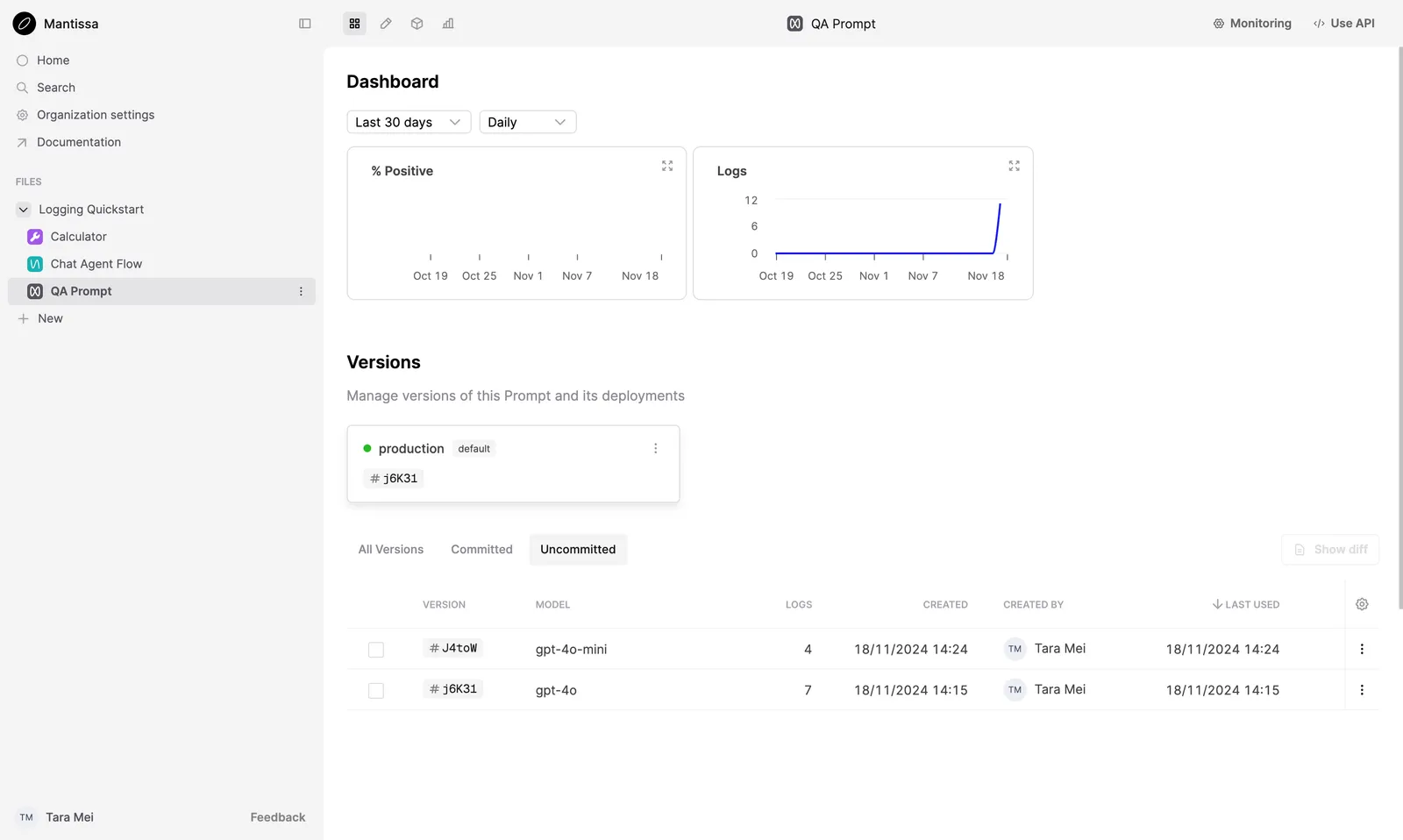
Click the QA Prompt Prompt, select the Dashboard tab from the top of the page and you should find a new version of the Prompt at the top of the list.

By changing the hyperparameters of the OpenAI call, you have tagged a new version of the Prompt.
Next steps

Logging is the first step to observing your AI product. Follow up with these guides on monitoring and evals: