

Observability in Node.js
Add Humanloop observability to a chat agent by calling the tool built with Vercel AI SDK. It builds on the AI SDK’s Node.js example.
Looking for Next.js? See the guide here.
Prerequisites
Account setup
Create a Humanloop Account
-
Create an account or log in to Humanloop
-
Get a Humanloop API key from Organization Settings.
Add an OpenAI API Key
If you’re the first person in your organization, you’ll need to add an API key to a model provider.
- Go to OpenAI and grab an API key.
- In Humanloop Organization Settings set up OpenAI as a model provider.
Using the Prompt Editor will use your OpenAI credits in the same way that the OpenAI playground does. Keep your API keys for Humanloop and the model providers private.
Create a new project
Start by creating a new directory for your project and initializing it:
Install dependencies
To follow this guide, you’ll also need Node.js 18+ installed on your machine.
Install humanloop, ai, and @ai-sdk/openai, the AI SDK’s OpenAI provider, along with other necessary dependencies.
Configure API keys
Add a .env file to your project with your Humanloop and OpenAI API keys.
Full code
If you’d like to immediately try out the full example, you can copy and paste the code below and run the file.
Setup
Code
Create the agent
We start with a simple chat agent capable of function calling.
This agent can provide weather updates for a user-provided location.
Log to Humanloop
The agent works and is capable of function calling. However, we rely on inputs and outputs to reason about the behavior. Humanloop logging allows you to observe the steps taken by the agent, which we will demonstrate below.
We’ll use Vercel AI SDK’s built-in OpenTelemetry tracing to log to Humanloop.
Set up OpenTelemetry
Install dependencies.
Configure the OpenTelemetry exporter to forward logs to Humanloop.
Trace AI SDK calls
Vercel AI SDK will now forward OpenTelemetry logs to Humanloop.
The telemetry metadata associates Logs with your Files on Humanloop. The humanloop.directoryPath specifies the path to a Directory where your Files and Logs will be located.
Run the agent
Have a conversation with the agent, and try asking about the weather in a city (in Celsius or Fahrenheit). When you’re done, type exit to close the program.
Explore logs on Humanloop
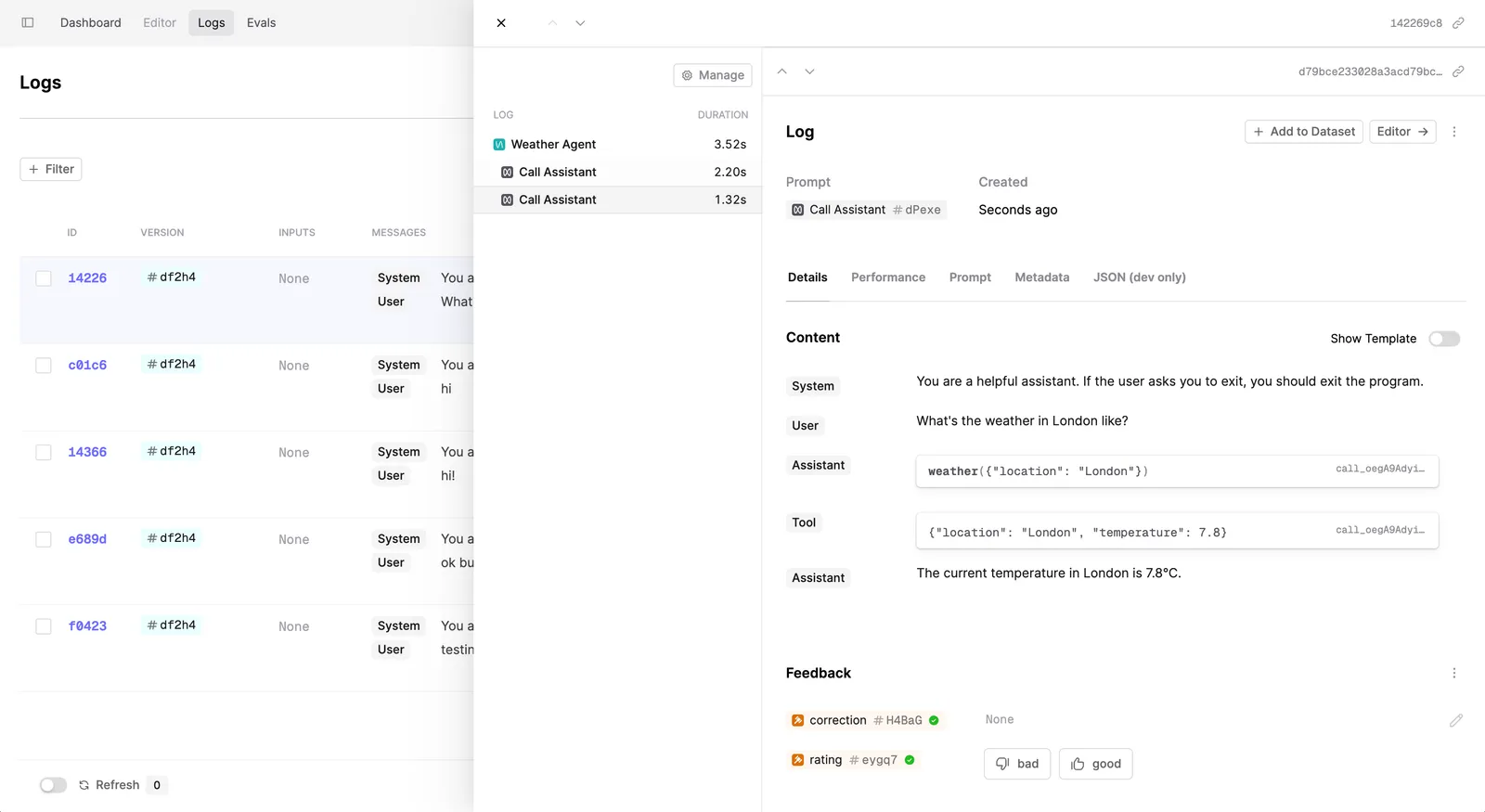
Now you can explore your logs on the Humanloop platform, and see the steps taken by the agent during your conversation.
You can see below the full trace of prompts and tool calls that were made.
Debugging
If you run into any issues, add OpenTelemetry debug logging to ensure your Exporter is working correctly.
Next steps
Logging is the first step to observing your AI product. Read these guides to learn more about evals on Humanloop:
-
Add monitoring Evaluators to evaluate Logs as they’re made against a File.
-
See evals in action in our tutorial on evaluating an agent.