

Capture user feedback
Record end-user feedback using Humanloop; monitor how your model generations perform with your users.
Prerequisites
- You already have a Prompt — if not, please follow our Prompt creation guide first.
- You have created a Human Evaluator. For this guide, we will use the “rating” example Evaluator automatically created for your organization.
Install and initialize the SDK
First you need to install and initialize the SDK. If you have already done this, skip to the next section.
Open up your terminal and follow these steps:
- Install the Humanloop SDK:
- Initialize the SDK with your Humanloop API key (you can get it from the Organization Settings page).
Configure feedback
To collect user feedback, connect a Human Evaluator to your Prompt. The Evaluator specifies the type of the feedback you want to collect. See our guide on creating Human Evaluators for more information.
You can use the example “rating” Evaluator that is automatically for you. This Evaluator allows users to apply a label of “good” or “bad”, and is automatically connected to all new Prompts. If you choose to use this Evaluator, you can skip to the “Log feedback” section.
Setting up a Human Evaluator for feedback
Different use-cases and user interfaces may require different kinds of feedback that need to be mapped to the appropriate end user interaction. There are broadly 3 important kinds of feedback:
- Explicit feedback: these are purposeful actions to review the generations. For example, ‘thumbs up/down’ button presses.
- Implicit feedback: indirect actions taken by your users may signal whether the generation was good or bad, for example, whether the user ‘copied’ the generation, ‘saved it’ or ‘dismissed it’ (which is negative feedback).
- Free-form feedback: Corrections and explanations provided by the end-user on the generation.
You should create Human Evaluators structured to capture the feedback you need. For example, a Human Evaluator with return type “text” can be used to capture free-form feedback, while a Human Evaluator with return type “multi_select” can be used to capture user actions that provide implicit feedback.
If you have not done so, you can follow our guide to create a Human Evaluator to set up the appropriate feedback schema.
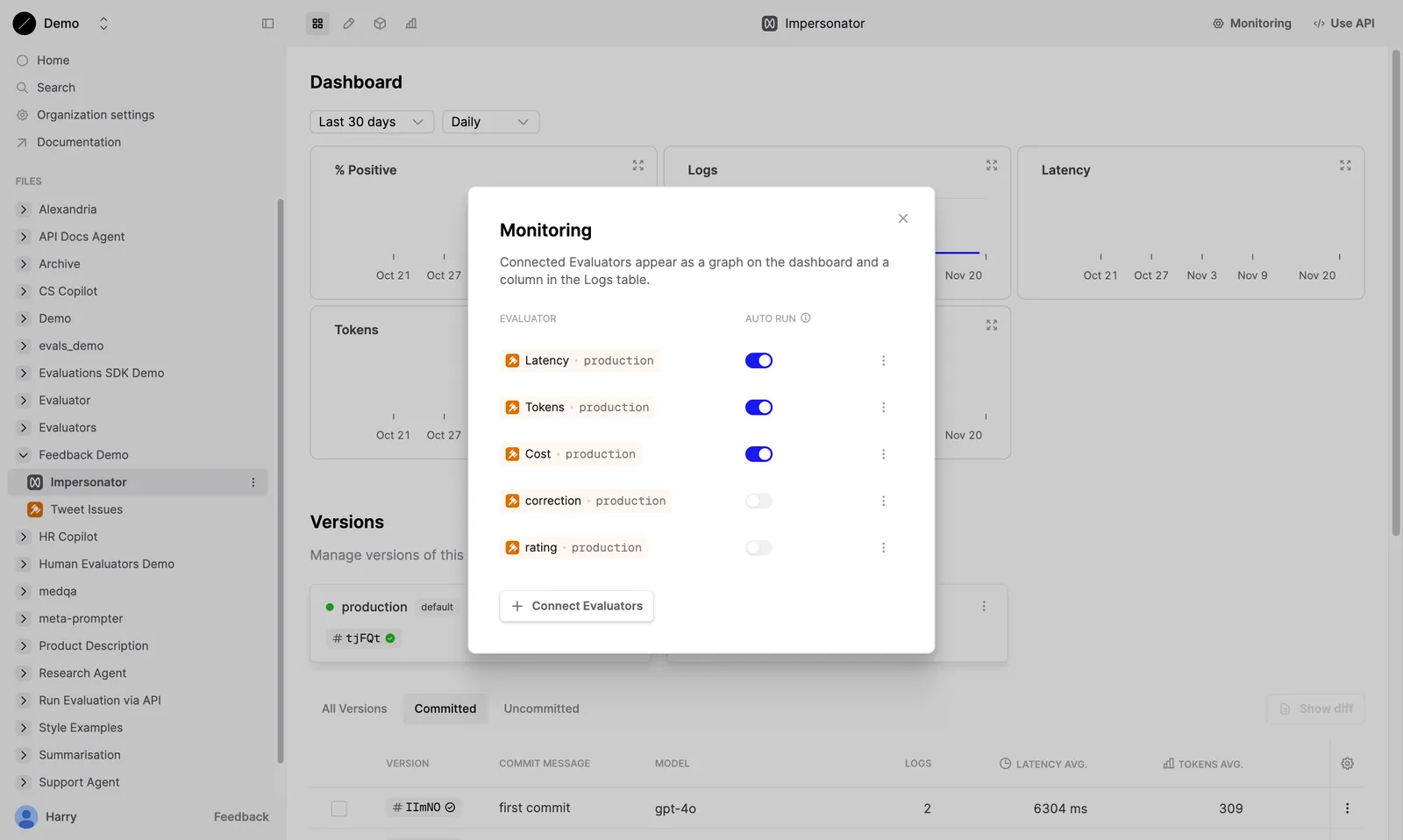
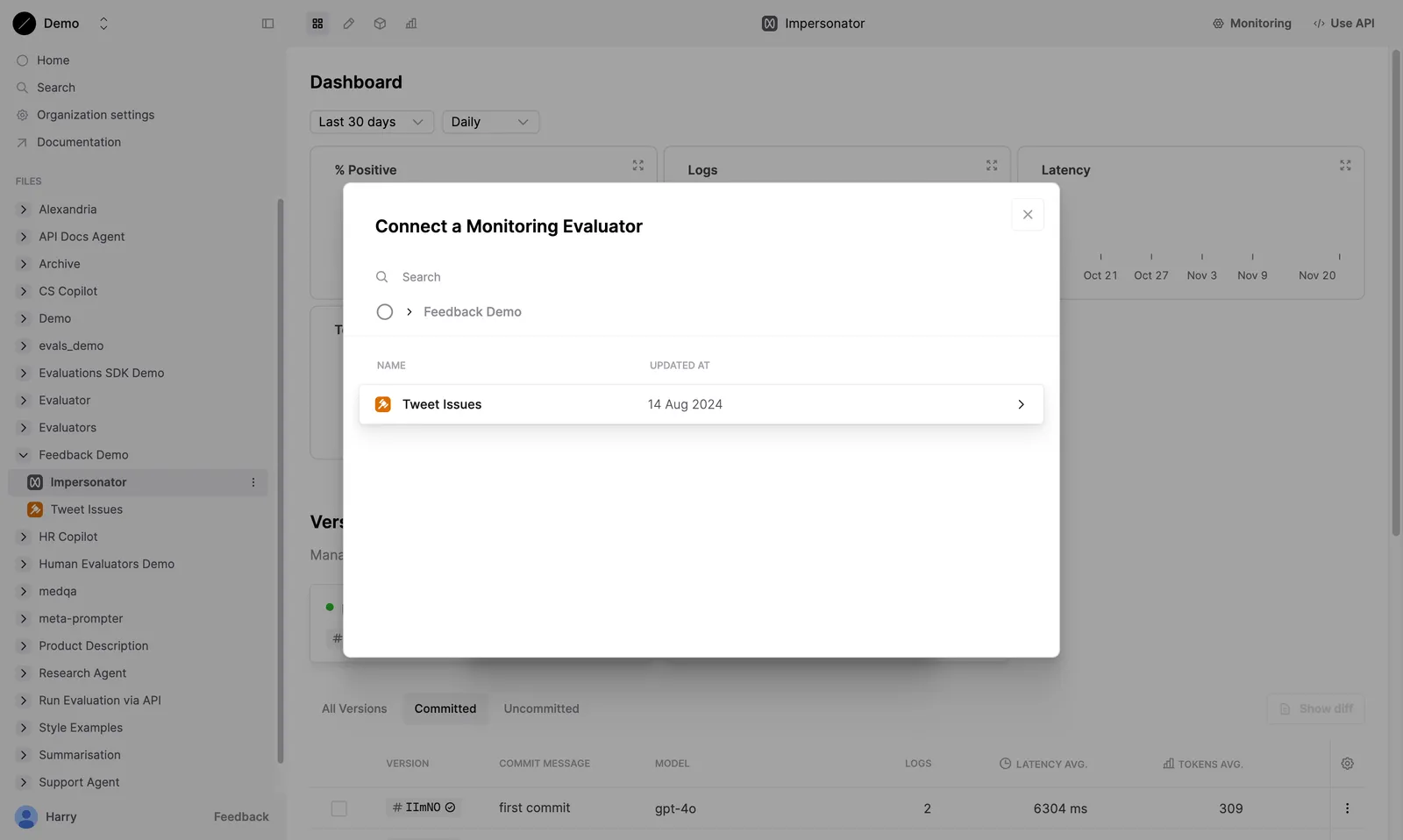
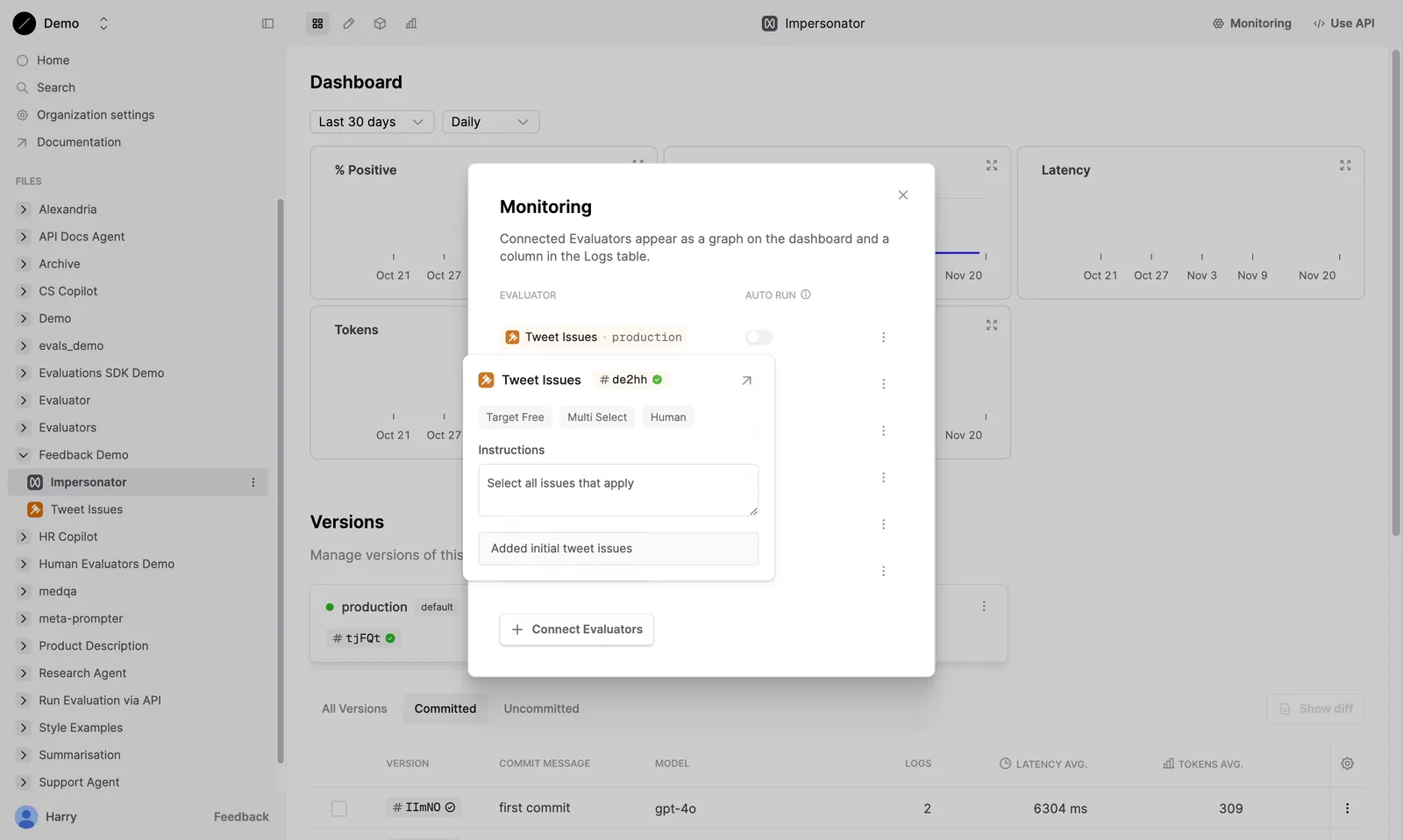
You should now see the selected Human Evaluator attached to the Prompt in the Monitoring dialog.
Log feedback
With the Human Evaluator attached to your Prompt, you can record feedback against the Prompt’s Logs.
Retrieve Log ID
The ID of the Prompt Log can be found in the response of the humanloop.prompts.call(...) method.
Log the feedback
Call humanloop.evaluators.log(...) referencing the above Log ID as parent_id to record user feedback.
More examples
The “rating” and “correction” Evaluators are attached to all Prompts by default. You can record feedback using these Evaluators as well.
The “rating” Evaluator can be used to record explicit feedback (e.g. from a 👍/👎 button).
The “correction” Evaluator can be used to record user-provided corrections to the generations (e.g. If the user edits the generation before copying it).
If the user removes their feedback (e.g. if the user deselects a previous 👎 feedback), you can record this by passing judgment=None.
View feedback
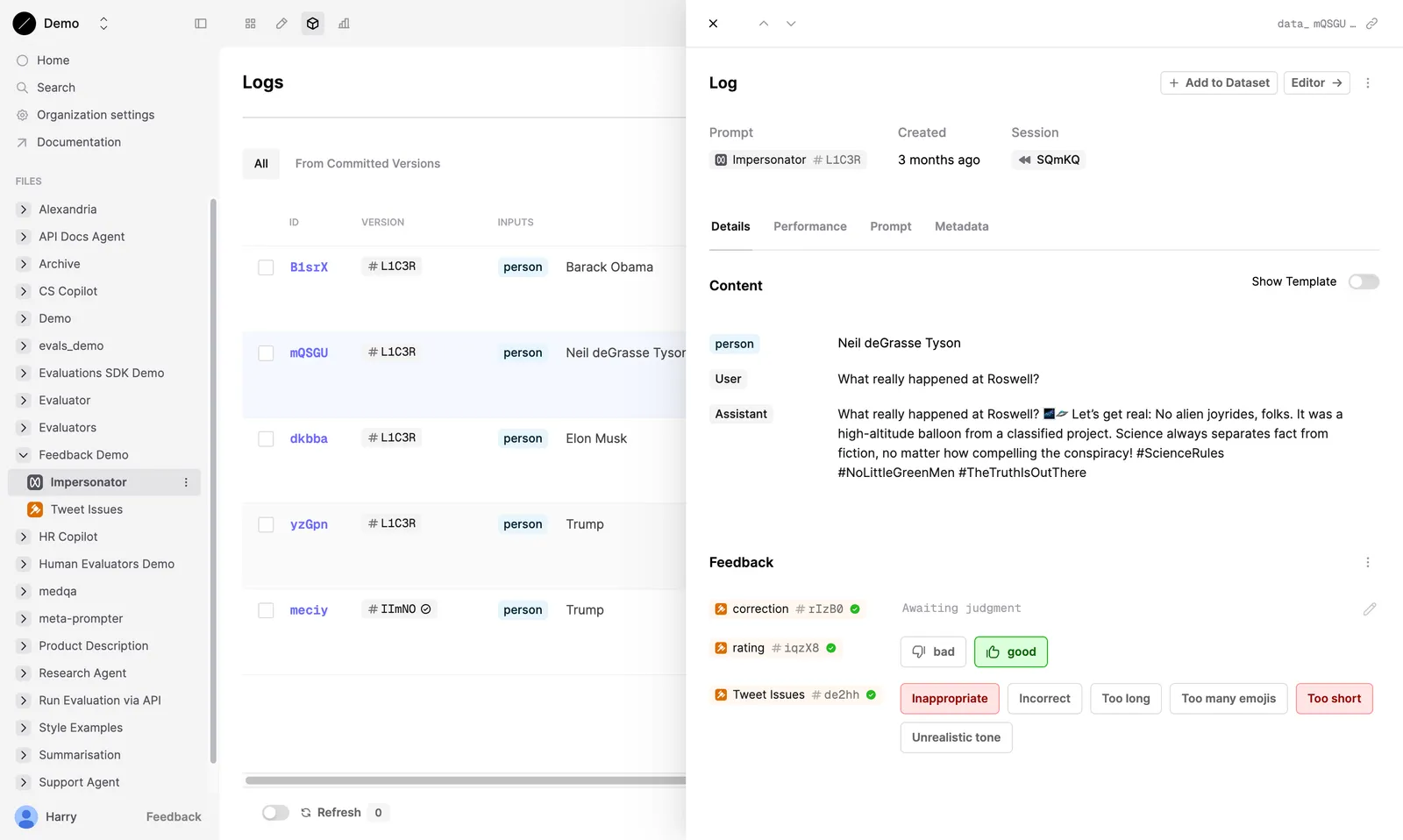
You can view the applied feedback in two main ways: through the Logs that the feedback was applied to, and through the Evaluator itself.
Feedback applied to Logs
The feedback recorded for each Log can be viewed in the Logs table of your Prompt.
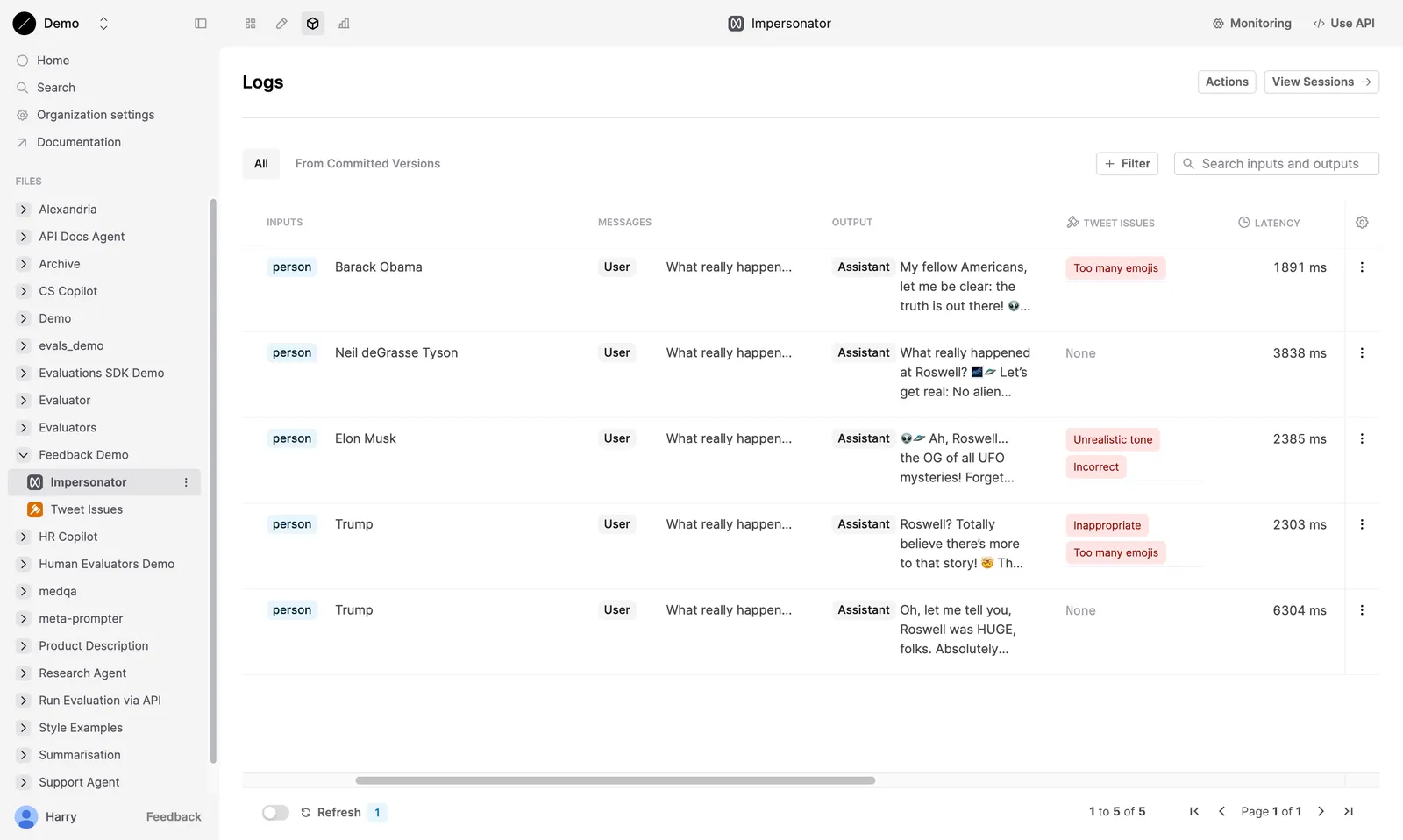
Your internal users can also apply feedback to the Logs directly through the Humanloop app.
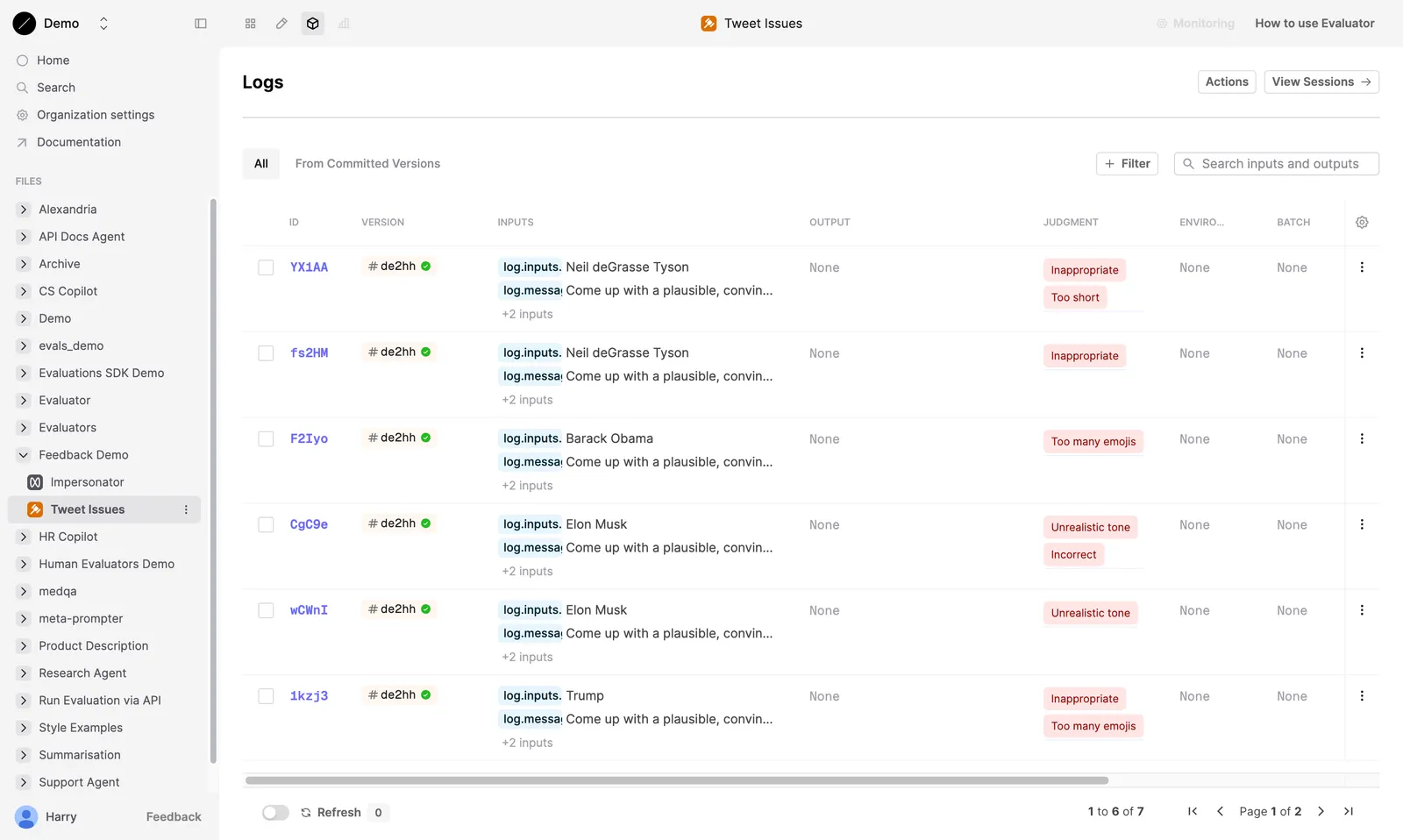
Feedback for an Evaluator
You can view all feedback recorded for a specific Human Evaluator in the Logs tab of the Evaluator. This will display all feedback recorded for the Evaluator across all other Files.
Next steps
- Create and customize your own Human Evaluators to capture the feedback you need.
- Human Evaluators can also be used in Evaluations, allowing you to collect judgments from your subject-matter experts.